


How do I make my Tradingview chart full screen?
For better analysis and a better view of market movements and price changes on the chart, the bigger your screen, the better you can see market movements and trends as more detail is displayed. One of the great features of TradingView is the full screen mode. By activating the full screen mode, all options and additional details around the chart are removed and the full screen shows you only the chart, allowing you you to analyse the chart better and see many more candles and trends.
How do I activate full screen mode in the Tradingview?
At the top of your Watch List, on the right hand side of the screen, you will see a toolbar; by clicking on the icon shown in the image below, you can switch your chart to full screen mode.
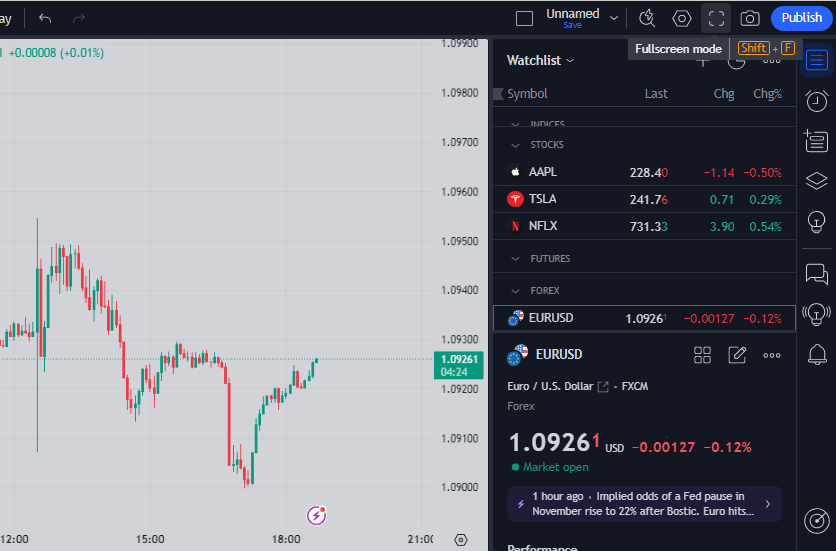
Photo by TradingView
You can also press Shift + F to exit full screen mode, and pressing these keys again will return your chart to full screen mode. Now, by clicking on the icon that we have shown you in the toolbar above our watchlist, we have put the chart in full screen mode, note the photo below.
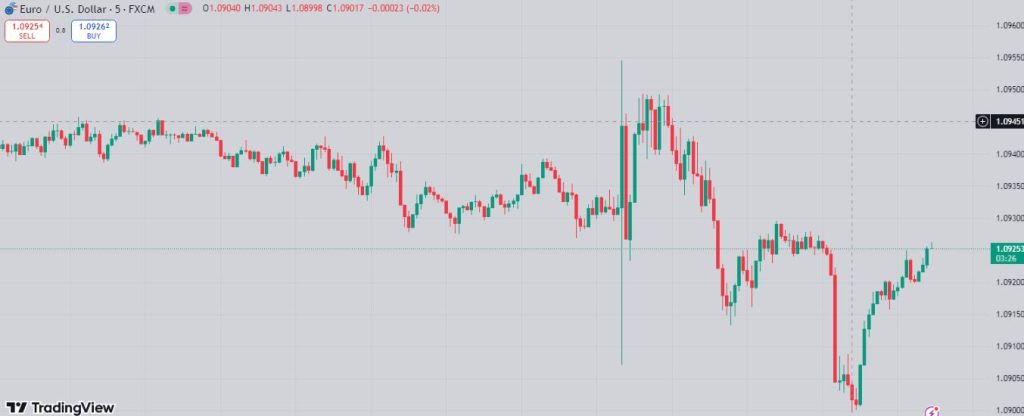
Photo by TradingView
As you can see in the picture above, our chart is in full screen mode and in this mode we can see many more candles and trends and we can analyse the chart better and more accurately.
We hope you enjoyed this article